










If you've ever fallen victim to your Windows PC forcing a software update while you're in the middle of a meeting, you're not alone. Microsoft could strongarm your device to update to the latest software – even if you were mid-task – to roll out critical security updates.
But now, the US tech firm is finally rolling out changes so that you can control when or if you decide to update your device.
Aria Hanson, strategic innovator at Microsoft, wrote in a blog post: "We are continually reading the feedback submitted about the Windows update experience. Personally, I've had the opportunity to read over 7,621 direct verbatim over the last few months.
"Across this feedback, there are two key themes that persistently pop out: disruption caused by untimely updates and not enough control over when updates happen. The changes we’re rolling out today are focused on giving Windows users more control over their PC experience, while keeping devices secure by design and by default."
You can now pause updates for 35 days at a time, and there's no limit on how many times you can extend that pause. This means if you prefer to delay the updates indefinitely, then you just have to hit pause again every 35 days.
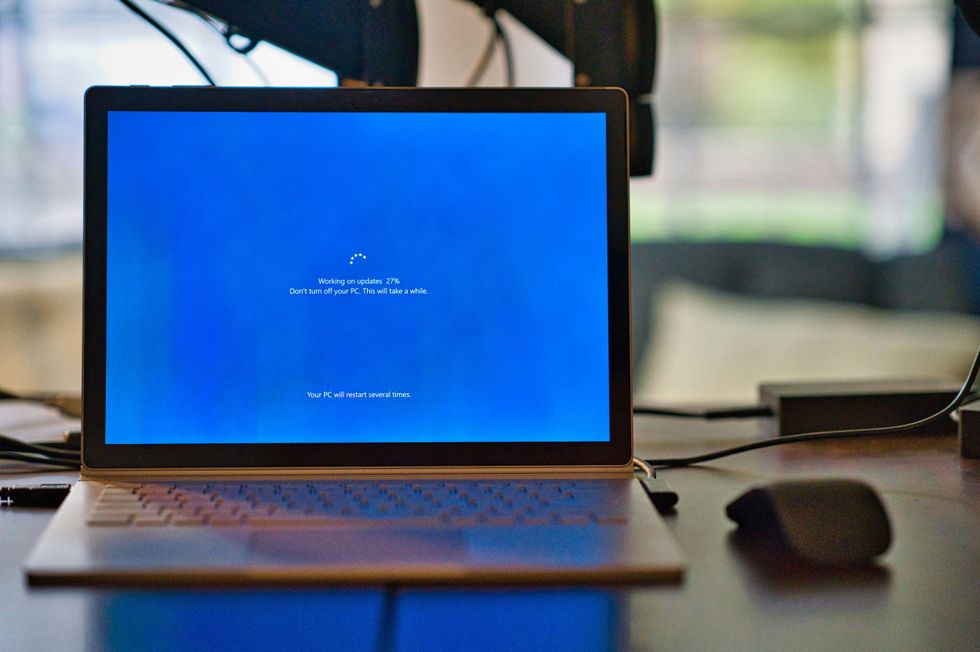
You can delay your Windows update for up to 35 days continuously
|UNSPLASH
You can also pick a specific day of the month to install any outstanding updates, which is ideal for planning around holidays, exams, or particularly hectic work periods.
To make things even simpler, the Power menu now shows separate Restart and Shut Down options again. Historically, Windows 10 — the recently sunset software by Microsoft – and Windows 11 often combined these options into "Update and shut down" or "Update and restart" during pending updates, forcing you to install updates to turn off their PCs.
The change means you can turn off your laptop without being forced to install pending updates.
Microsoft is also bundling updates together so you won't need to restart your computer quite so often. Going forward, all updates will be combined into a single monthly package, so you'll only need to worry about one major update per month instead of several.
There's also good news if you've ever been baffled by Windows' cryptic update names, often full of technical code or jargon. Windows will now show you what type of hardware each driver update relates to – things like display, audio, or battery.
LATEST DEVELOPMENTS
- Roku hits record-breaking new milestone, and Fire TV just can't compete
- British brand launches long-awaited Sky Q rival to watch, pause, and record telly
- Best VPN deals
- Spotify is treating you to more than 1,400 Peloton workout classes at no extra cost
- Shark launches £130 handheld fan that promises to 'instantly cool' skin
When you're setting up a brand new Windows device, you'll soon be able to skip updates entirely during that initial setup process, too. Until now, new PC owners would have to wait until the latest features were installed before being able to launch apps on their new devices.
These features are currently being tested by Windows Insiders in the Dev and Experimental channels, with a wider release expected to follow soon.
Microsoft has also hinted at more changes coming in the months ahead, including the ability to move Windows 11's taskbar – which is currently stuck in place – and cutting back on Artificial Intelligence (AI) from some of its most popular Windows 11 apps.
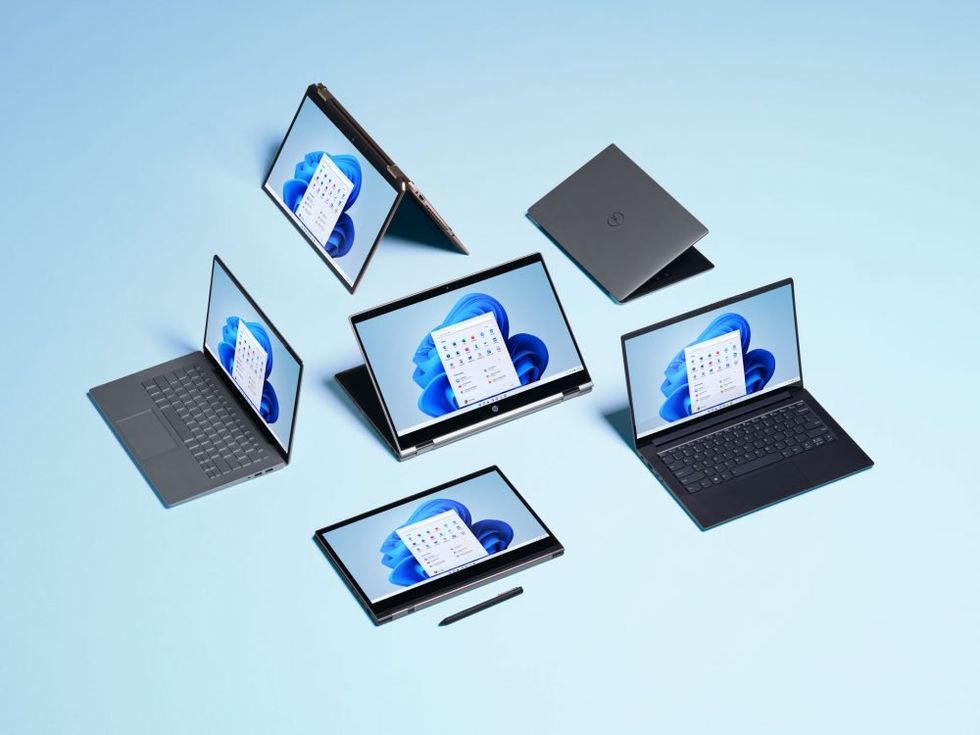 Your Microsoft device must be updated to Windows 11 — the latest operating system — to receive the latest features and security fixes | MICROSOFT PRESS OFFICE
How to install Windows 11 updates
If you do have a pending Windows 11 update that you'd like installed, follow these steps:
- Click the Start menu (Windows icon).
- Open Settings.
- Go to Windows Update (bottom of the sidebar).
- Click Check for updates.
- If updates are available: Click Download & install.
- Restart your PC if prompted.