











Hackers could hijack millions of WhatsApp users with a single file.
Google's Project Zero team recently uncovered a troubling security flaw inside the Meta-owned chat app that could let hackers seize control of your Android smartphone by sending a malicious file to your phone.
If your device downloads the malware-laced file, criminals can gain access to everything on your handset — allowing them to impersonate you in conversations via WhatsApp, unlock banking apps, access your photos, and much more.
What makes this especially concerning is that it's a zero-click attack: you don't need to tap or open anything for the malicious file to take hold of your device. This type of hacking attempt seems to be successful too, as they keep cropping up in different forms across the messaging app and other platforms.
A similar type of scheme was detected on WhatsApp just under two months ago, where hackers didn't need to bypass authentication checks to steal your data. Google also recently confirmed that hackers are targeting Gmail accounts. Here's everything you need to know about how it works, and how you can protect yourself now.
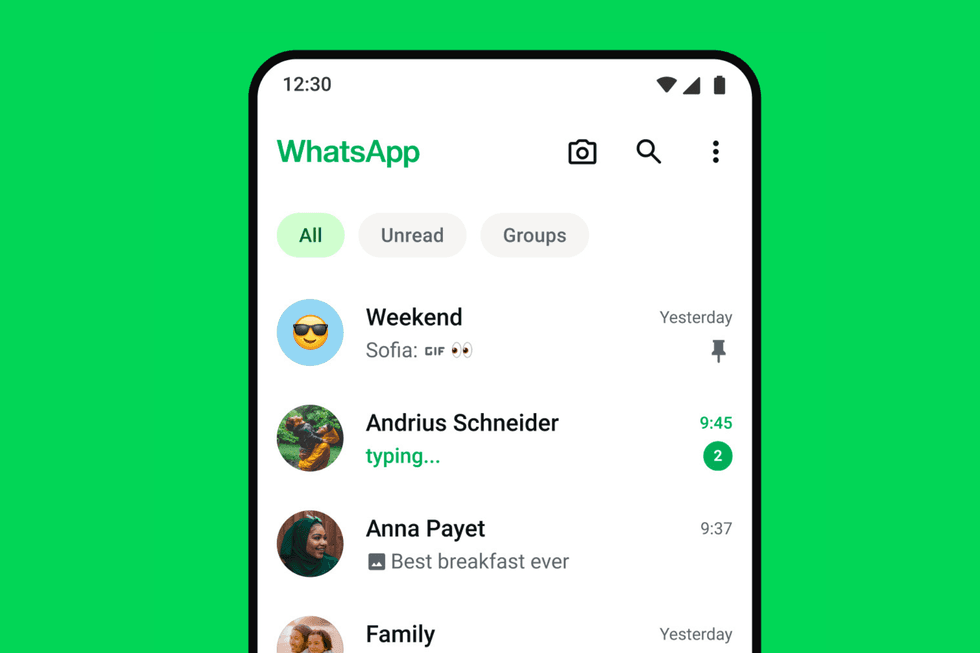
As of this year, more than 3 billion people use WhatsApp monthly globally
|WHATSAPP PRESS OFFICE
The terrifying hack only works if you have WhatsApp's automatic media download feature enabled on your Android device. This time-saving feature saves photos, videos, and documents to your device without you lifting a finger. Sounds convenient, but it turns out this handy function can be exploited by cybercriminals looking to sneak infected files onto your phone through group chats.
That's because malware-laced files will be automatically downloaded to your device — letting the virus spread before you've even realised that you've been sent the offending file.
To spread the malware, hackers often impersonate one of your contacts, setting up fake group chats and inviting you to join. Once you accept that invitation, infected files are sent and will download automatically without you ever knowing something's gone wrong.
According to Project Zero, attackers are most likely to use this method in targeted campaigns, since they need to know at least one of your contacts to be able to impersonate them.
To combat the potential attacks, Meta pushed out a fix as early as November 11, 2025, but Google says that it only partially resolved the issue on Android. Meta is currently working on a more permanent fix.
In the meantime, you can follow these steps to secure your account.
LATEST DEVELOPMENTS
- Would YOU pay to use WhatsApp? Future updates to chat app could carry monthly fee
- Second-ever Freely TV box unveiled with cheapest price yet
- Best VPN deals
- ExpressVPN issues critical update — install NOW or lose VPN access
- 149 million online accounts leak, including Gmail, Netflix, Yahoo, more
- Best cheap VPN
1. Switch off WhatsApp's automatic media download feature
Since using WhatsApp's automatic media download feature seems to be the main way hackers can get through to your account, it may be best to switch it off completely.
On Android
- Open WhatsApp
- Tap the three dots (top right) → Settings
- Tap Storage and data
- Under Media auto-download, tap:
- When using mobile data
- When connected on Wi-Fi
- When roaming
- Uncheck all media types (Photos, Audio, Videos, Documents)
Bonus tip (very useful)
If you only want to stop specific chats from saving media:
- Open the chat → tap the contact/group name
- Select Media visibility
- Set to No
Once you've done this, each category should show "No media" underneath it. This stops any dodgy files from silently landing on your phone the moment you're added to a group chat.
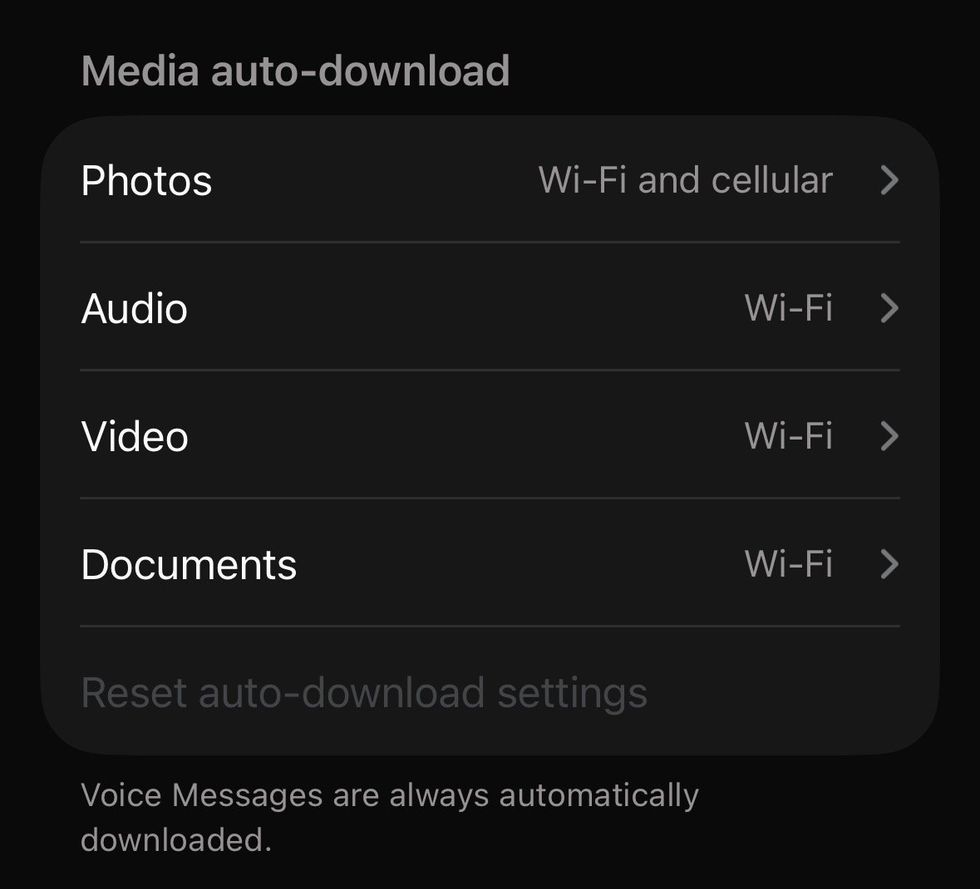
You can tailor how media is downloaded to your mobile in the WhatsApp media auto-download settings
|WHATSAPP | GB NEWS
2. Limit your group chat access
Since this attack relies on criminals adding you to dodgy group chats, you can limit who has that power.
On Android
- Open WhatsApp
- Tap the three dots → Settings
- Tap Privacy
- Tap Groups
- Select:
- Everyone
- My contacts
- My contacts except…
If you use WhatsApp for work, it's also worth keeping group access restricted to people you know and trusted administrators only. This way, you can limit the risk of leaking any company data unknowingly.
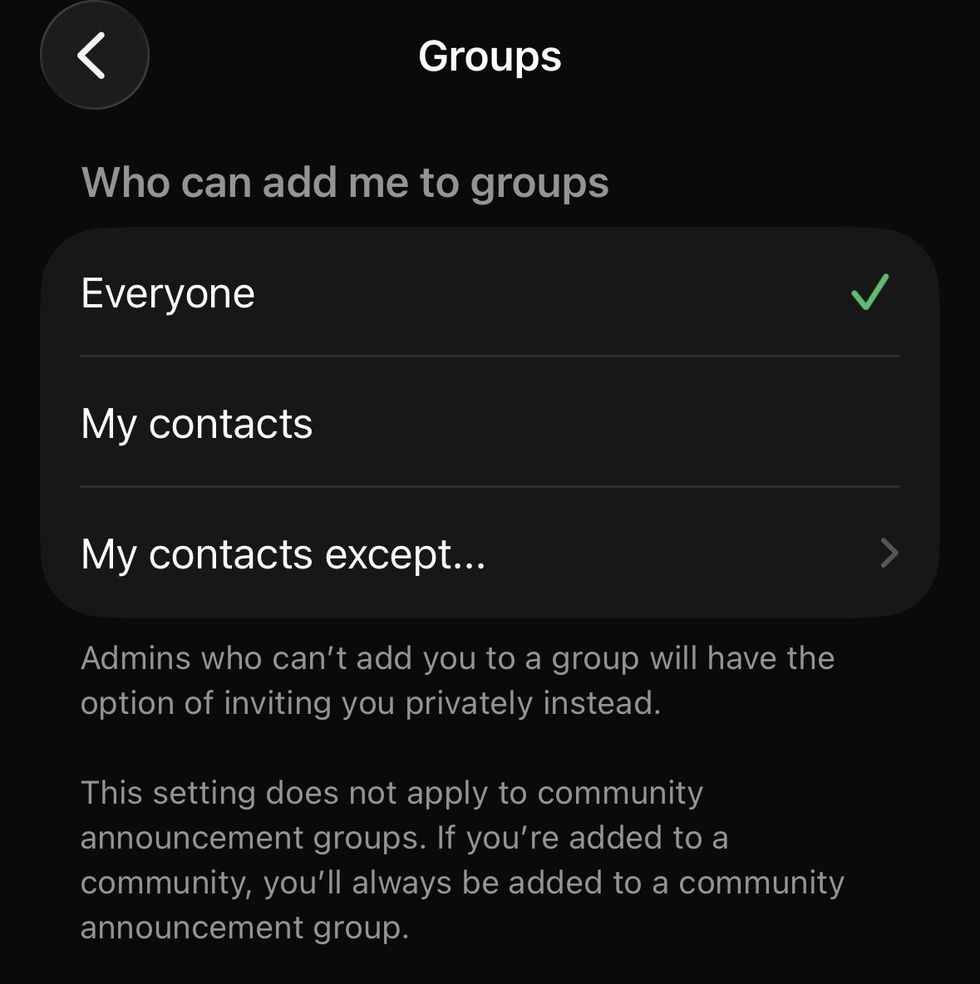
You can edit who can add you to group chats on WhatsApp
|WHATSAPP | GB NEWS
3. Keep your WhatsApp updated
It's always best practice to make sure you're running the latest version of WhatsApp. Keeping your apps updated is one of the simplest ways to stay protected.
Instead of checking periodically to see if you need to update your chat app, you can switch on automatic updates within your mobile's settings.
In extreme circumstances, WhatsApp has just rolled out a brand-new Strict Account Settings feature on the platform. When enabled, it reduces your vulnerability to cyber attack by limiting functionality. This lockdown mode will block incoming attachments, photos, and videos from anyone outside of your contacts.
More From GB News