










Struggling to stay on top of your Gmail inbox? If the unread emails are piling high — and Google is constantly cautioning that your free 15GB cloud storage allowance is about to run out — ChatGPT has the fix.
Most Britons receive around 144 emails per day, making up over 700 per week in the UK. On top of that, the average person typically has over 1,000 unread emails floating around their inbox.
With so many incoming emails regularly, keeping your inbox nice and tidy can easily slip through your fingers. Unfortunately, clearing out these unread emails and reclaiming your cloud storage isn't as simple as you might think.
While Gmail does allow you to delete multiple emails at once: you can click Select All and move the selected messages to the trash. However, the Select All button only applies to the emails visible on the current page, and Gmail displays a maximum of 100 emails per page.
This means that if you have more than 100 emails, you would need to repeat the process multiple times until your inbox is completely cleared. ChatGPT has now found a way to eliminate this repetition and delete all your unread emails without any extra steps.
To achieve this, the AI platform has generated a specific code that you can use to delete every unread email.
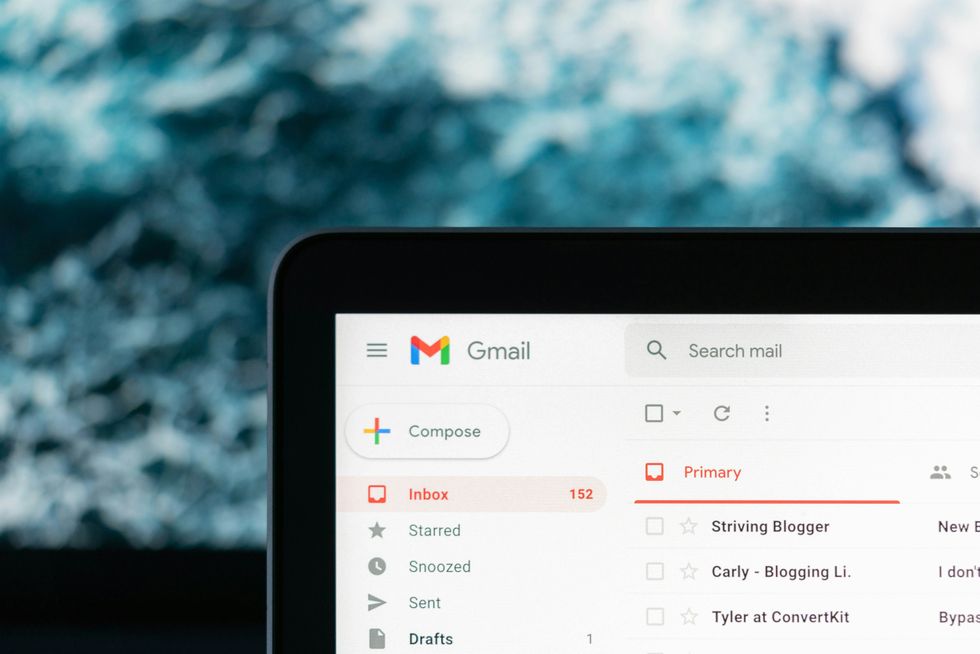
You can apply the Select All button to delete a bulk amount of emails at once, but Google limits this to the number of emails displayed on one page
| UNSPLASHFirst, you'll need to be able to access Google Apps Script.
This is a platform compatible with your Google Workspace apps, such as Gmail, Calendar, Drive, and more. It allows you to create business applications and code. If you already have a Google account, then you should be able to log in easily with your same credentials.
function inboxToZero@) ‹
// Number of threads to process per run
const PAGE_SIZE = 100;
// Search for unread emails, limited to PAGE_SIZE
const threads = GmailApp search('is:unread', 0, PAGE_SIZE);
// If no unread emails left, exit
if (threads. length === 0) {
Logger. log ("Done. Nothing unread left."); return;
}
// Process each thread
for (const thread of threads) ‹
thread.markRead () ;
// Mark the email as read
thread.moveToArchive();
// Archive the email
// To permanently delete instead of archive, use:
// thread moveToTrash ();
}
Logger. log("'Processed " + threads. length + " threads.");
Then you can follow these steps to have all your unread emails deleted.
- Once you access Google Apps Script, click New Project
- Paste the above code ChatGPT has created for you into the project
- You'll need to run once manually by clicking Authorise
- Then you'll need to set a trigger so that the code can be activated
- Navigate to the left sidebar and select Triggers
- Add Trigger
- Choose inboxToZero
- Select Event and then click Time-driven
- Every 1 minute or every 5 minutes (either is fine)
This code will then churn through however many unread emails you have on your Gmail account. The server won't time out either, so you won't have to worry about it pausing if you walk away from your device.
LATEST DEVELOPMENTS
If you want more control over which emails are deleted, ChatGPT can also provide special codes that you can paste directly into your Gmail inbox.
For instance, if you only want to find and delete emails older than six months, then you'd use code: is:unread older_than:6m
 Gmail is one of the most popular email services on the planet, with over 1.8 billion account holders worldwide | GOOGLE PRESS OFFICE
 Looking for emails from a specific date? You can paste in code: before:2024-01-01
All you need to do is edit the code to reflect the specific date you want.
If you're looking for emails from a specific category, ChatGPT can provide this too.
For example, it can find unread emails in the Promotion section by pasting in category:promotions older_than:6m to your Gmail search bar.
If you're looking to navigate another aspect of your Gmail inbox, you can play around with ChatGPT to help develop more specific codes for your needs.
More From GB News