


All products and promotions are independently selected by our experts. To help us provide free impartial advice, we will earn an affiliate commission if you buy something. Click here to learn more








Your Fire TV Stick has a trick hiding right under your thumb.
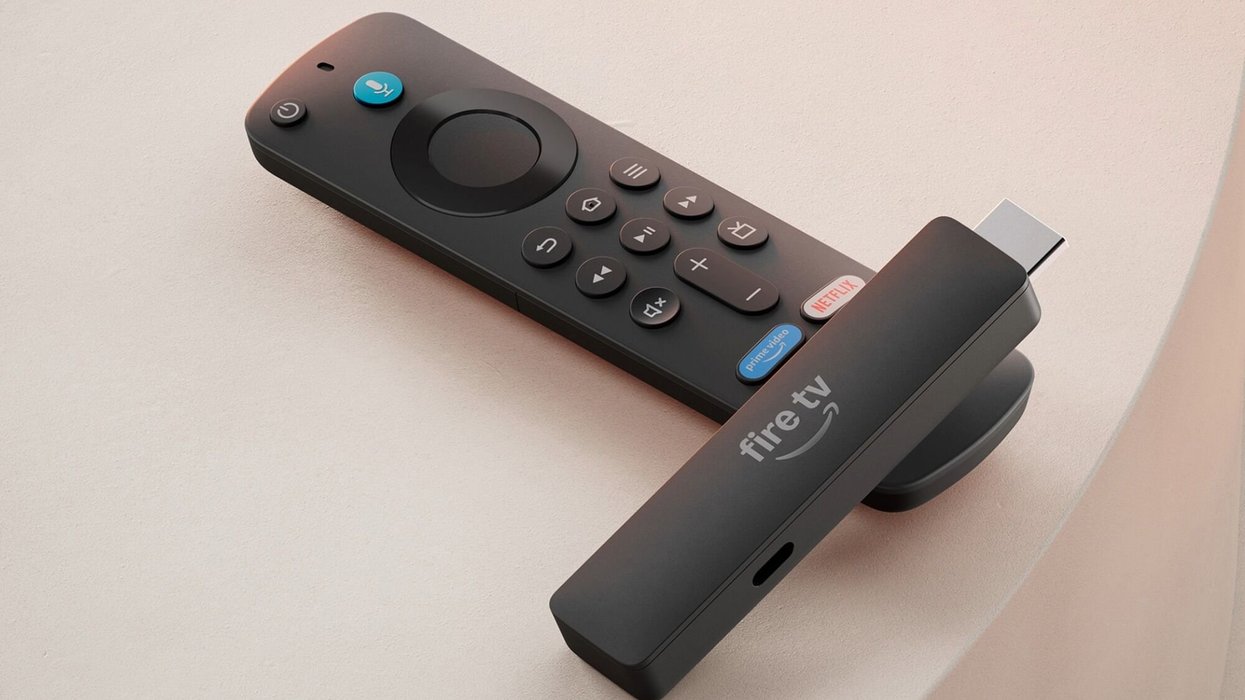
This small, plug-and-play streaming device is known for slotting into your TV’s HDMI port, instantly turning it into a smart TV. Instead of switching between apps or devices, everything lives in one place — Netflix for a Friday movie night, BBC iPlayer for catch-up TV, YouTube for quick background viewing, or Prime Video for new releases.
However, you may not know that the remote's Home button does more than just return you to the TV's main screen.
It turns out that holding down the Home button for a few seconds opens a Quick Access menu. This handy overlay appears right on top of whatever you're watching, giving you instant access to switch your user profile and settings.
Get 40% off the Fire TV Stick 4K Select from Amazon
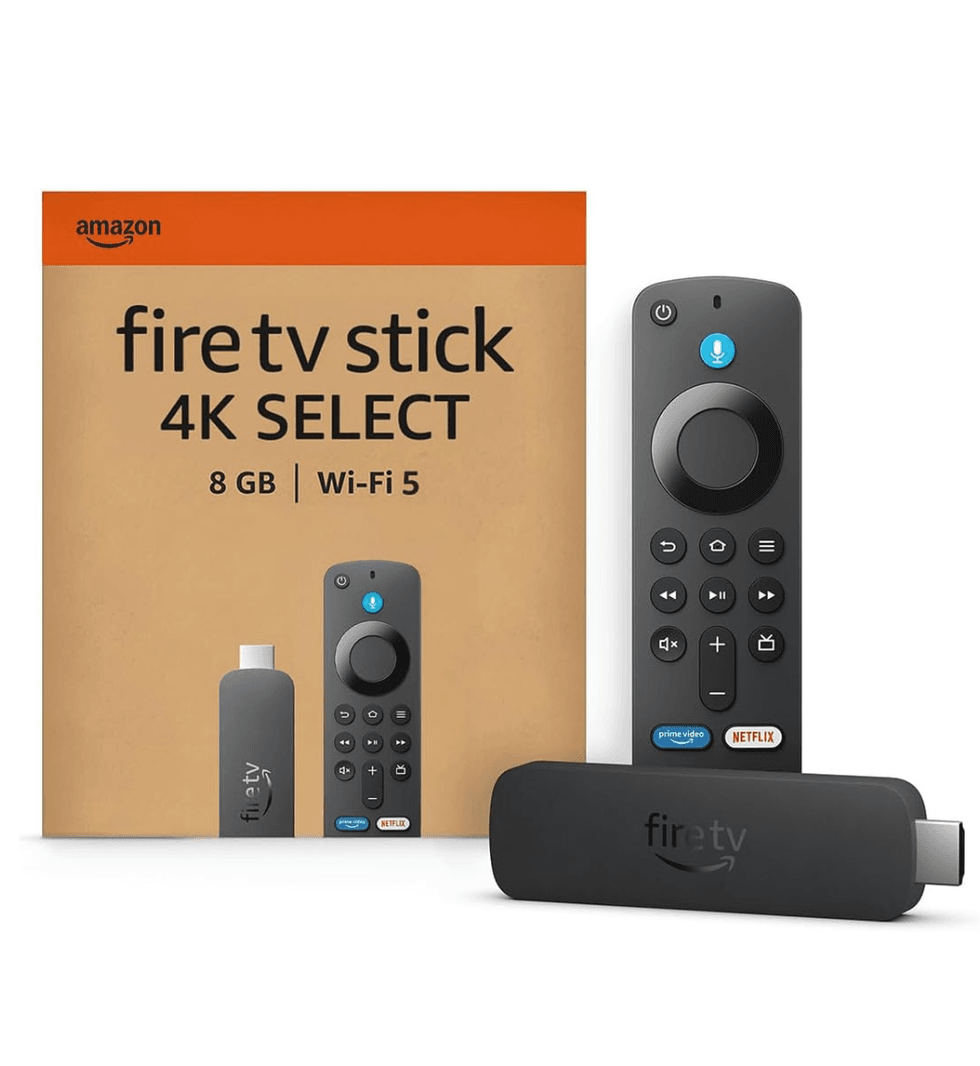
The Fire TV Stick 4K Select comes with several features that were previously reserved for pricier models, like the ability to play console-quality games like Call of Duty, Fortnite, Indiana Jones and the Great Circle, and Gears of War via Xbox Game Pass. The new Vega OS promises speedier performance when streaming boxsets, live sports, and blockbusters. You can also ask Alexa to read out player stats, trivia about the show, or identify songs playing in the background of a scene.
And the best part is you don't need to stop your film or navigate away from your current app to use it. This shortcut works anywhere on the Fire TV interface, making it one of those genuinely useful features that Amazon doesn't exactly shout about.
There are several actions you can take with the Quick Access menu, too.
For instance, you can switch between user profiles without heading back to the home screen, which is perfect for households where everyone has their own watchlist.
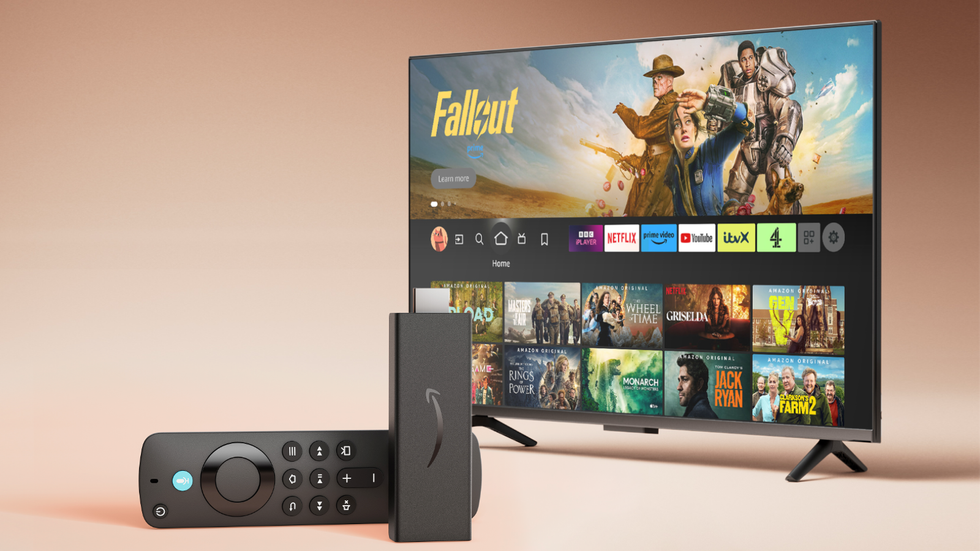
If you want to mirror your tablet or phone screen to the telly, you can turn on display mirroring right on the Quick Access menu
| AMAZON PRESS OFFICE | GBNYou can also easily access your installed streaming apps like Netflix instead of navigating all the way back to the main screen.
If you want to mirror your tablet or phone screen to the telly, display mirroring is right there in the menu. There's also a sleep timer for those nights when you drift off mid-episode.
For any settings that you want to change, the menu appears as a horizontal bar across your screen, with your content still visible behind it. No need to pause or exit anything.
LATEST DEVELOPMENTS
- Googlebook is a brand-new type of AI-packed laptop
- Spotify's 20 Years feature was SO popular, it brought down the app
- Best VPN deals
- Polestar 4: We drove the first car sold in Britain without a rear window
- Millions of Samsung TV owners are being treated to FREE extra channels
- British brand's Sky Q rival finally goes on sale
Another small trick worth noting is that if you hold the Up and Rewind buttons at the same time, you can manually choose your display resolution — ideal for tweaking picture quality to match what you're watching.
Hidden menus and tucked-away shortcuts have become pretty standard across streaming devices these days. Roku has several secret menus you can access through its developer mode.
Apple TV is packed with similar features, including the ability to quickly switch apps by double-tapping the TV/Control Center button on the Siri remote.