










If you recently downloaded ChatGPT to your laptop, you might want to double-check what the app is called.
Security experts at Malwarebytes spotted the fraudulent website, dubbed openew.app, that looks almost indistinguishable from OpenAI's official ChatGPT download page. But if you visit the fake one, instead of getting the real app, you'll be stuck with malware designed to pinch passwords, browser data, and cryptocurrency wallets.
Both Windows and Mac users are at risk here, with the attackers serving up different malicious software depending on which operating system you're using. The fraudulent site appears completely legitimate, featuring the same branding and layout you'd expect from OpenAI.
So what exactly happens when you click that download button? Well, it depends on your device.
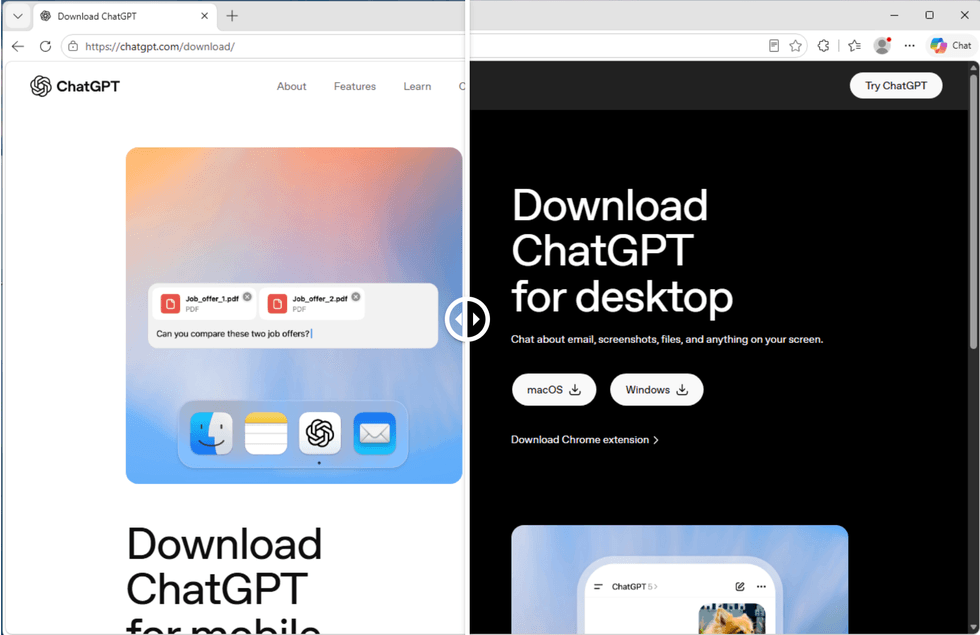
Both Windows and Mac users are at risk in downloading the fake version of ChatGPT
|Windows users receive what looks like a normal installer, but it's actually a malware loader that quietly opens a connection to servers controlled by the attackers. This essentially gives hackers a backdoor into your machine.
On the other hand, Mac users are feeling the wrath of something called Odyssey Stealer, which is a variant of a well-known malware family linked to cryptocurrency theft. This nasty piece of software goes after browser passwords, cookies, Telegram sessions, and crypto wallet files.
Perhaps most worryingly, it also tries to swap out legitimate crypto Ledger and Trezor wallet applications with compromised versions that the attackers control.
AI tools have become a prime target for fraudsters.
With established software like Chrome or Photoshop, many users already know exactly where to find the official download. You'd normally go to Google or Adobe without thinking twice. With AI tools, this isn't the case yet.
Malwarebytes said, "AI tools are different because most users are still installing them for the first time, and that means relying on search results, ads, YouTube links, or social posts to find the download page. That creates an ideal environment for fake sites."
LATEST DEVELOPMENTS
- EE flips switch on speed boost for millions across UK at no extra cost
- Best VPN deals
- Google is bringing Digital IDs to the UK 'soon' to bolster age checks on Android phones
- Millions ditch Google in wake of update that 'force-feeds users with AI features'
- New Windows 11 update brings major speed boost to your PC
If you think you might have downloaded the fake app, you need to act fast.
First, grab a different device without the fake ChatGPT downloaded and sign out of all your important accounts using the "sign out everywhere" option. That means email, banking, cloud storage, GitHub, Discord, Telegram, and any crypto exchanges.
Next, change your passwords, starting with your main email account.
If you hold any cryptocurrency, move your funds immediately using a separate device. Mac users should avoid opening Ledger Live or Trezor Suite on the affected machine, as those apps may have been replaced.
It's important to keep a close eye on your bank accounts for any suspicious activity and consider reinstalling your operating system to ensure the safest recovery.
To reinstall the operating system on Windows:
- Back up your files (photos, documents, videos, and other important data).
- Connect your device to power and make sure you have a stable internet connection.
- Open Settings > System > Recovery.
- Click Reset PC and choose: Keep my files (removes apps but keeps personal files), or Remove everything (completely erases the computer)
- Select Cloud Download or Local Reinstall.
- Review the settings and click Reset.
- Wait while Windows reinstalls. Your computer will restart several times.
- Follow the on-screen setup instructions when the installation is complete.
- Reinstall your apps and restore your backed-up files if needed.
Reinstalling your operating system is one of the most thorough ways to get rid of malware
|APPLE PRESS OFFICE
If you need to reinstall the operating system on Mac:
- Back up your files using Time Machine or another backup method.
- Connect your Mac to power and ensure you have internet access.
- Restart your Mac and enter macOS Recovery: On Apple Silicon Macs: Shut down, then press and hold the power button until startup options appear. On Intel Macs: Restart and immediately hold Command (⌘) + R.
- In the Recovery window, select Reinstall macOS.
- Click Continue and follow the prompts.
- Choose the drive where macOS is installed.
- Wait for macOS to download and reinstall. Your Mac may restart several times.
- Complete the setup process after installation finishes.
- Restore your files from your backup if necessary, and reinstall any apps